Filter Parent and Variant Products for Export
Products to export
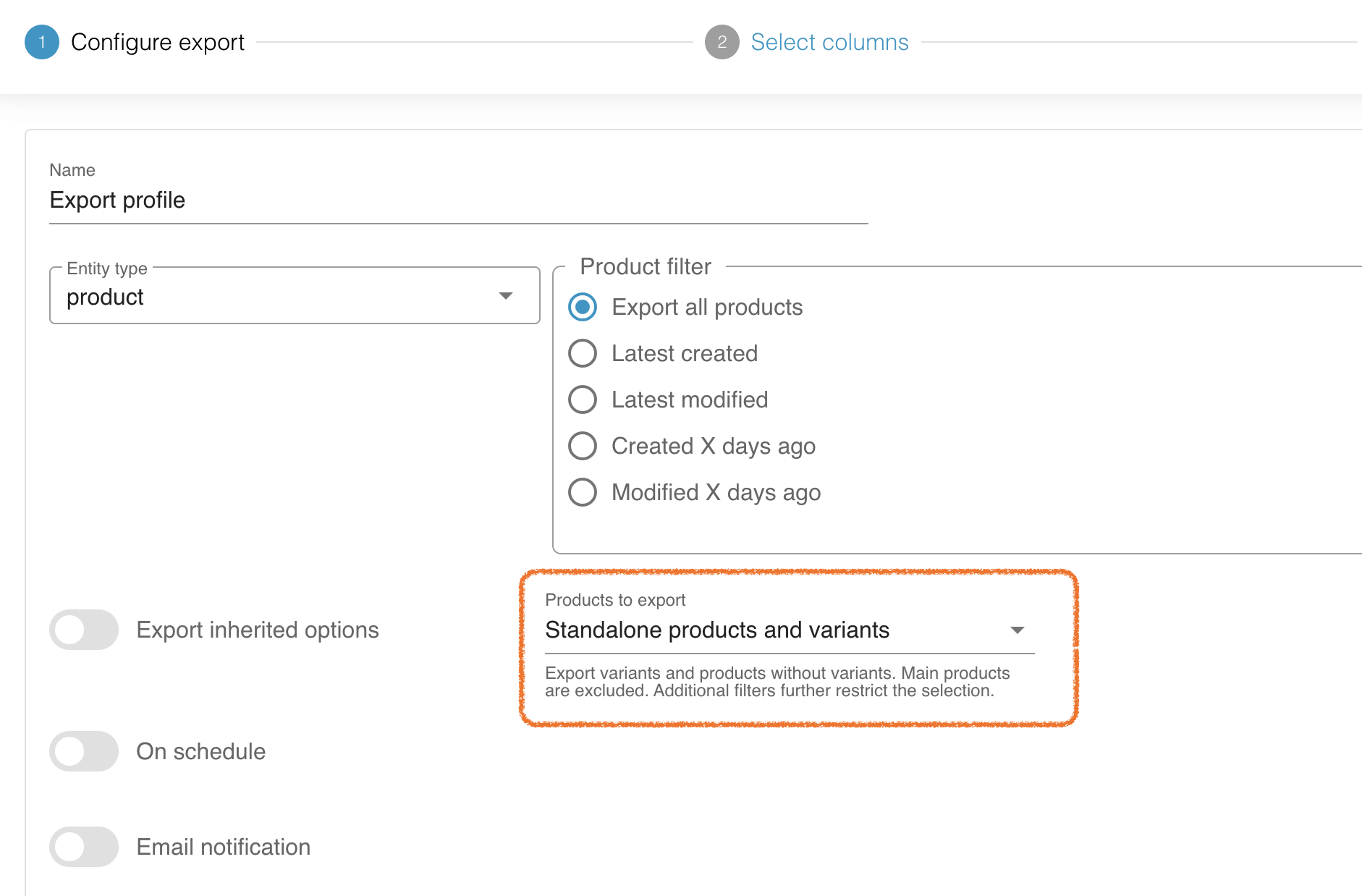
Section titled “Products to export”Use Products to export on the first page of a product export profile. It replaces the former Export only simple product switch. A description below the selector explains what the selected option includes and excludes.
In these options, a parent product is the main product with variants. A variant belongs to a parent product. A standalone product has neither a parent nor variants.
- Open or create an export profile and select Products.
- In Products to export, choose the products you need.
- Add any other filters, save the profile, and run the export.
| Selection | Products included |
|---|---|
| All products | Standalone products and parent products, with each parent’s variants immediately after it. This is the default. |
| Standalone products and variants | Products with no children: standalone products and variants, but no configurable parents. |
| Parent products only | Main products with at least one variant. The variants themselves and standalone products are excluded. |
| Variants only | Only variants. Parent products and standalone products are excluded. |
| Standalone products only | Products without a parent and without variants. Parent products and variants are excluded. |
The four restricted selections export only the matching products. They never add variants automatically. Advanced filters further restrict the selection; they do not replace it. Conflicting filters can therefore produce an empty export.
For example, your catalog contains a T-shirt main product, its Size S and Size M variants, and a mug without variants:
- Parent products only exports the T-shirt main product.
- Variants only exports the Size S and Size M variants.
- Standalone products only exports the mug.
- Standalone products and variants exports the mug and both T-shirt variants.
- All products exports all four products.
Advanced parent filters
Section titled “Advanced parent filters”For parents only, variants only, or standalone products only, use the selector above: no additional parent_id filter is needed.
Under Advanced Filters, use parent_id to select variants of a particular parent or to reproduce older filter-based setups.
| Field | Operator | Value | Matching products |
|---|---|---|---|
parent_id | equals | Leave empty | Parent and standalone products; not variants. |
parent_id | not equals | Leave empty | Variants only. |
parent_id | equals | A parent product UUID | Variants belonging to that parent. |
For example, choose Variants only, add parent_id → equals, and enter the parent’s UUID, such as 019527ca391372d5a256adf8a79152a0.
An unused filter row with no field selected is ignored. This is different from selecting parent_id and leaving its value empty: that is a valid filter with the behavior shown above.
Filter by childCount
Section titled “Filter by childCount”childCount is the number of variants a product has. It is available in Advanced Filters only; it is not an export column. Use the existing range operator: the lower bound is included and the upper bound is excluded.

The screenshot shows at least 100 variants (childCount >= 100), including products with exactly 100 variants. Choose Parent products only on the first page to export the matching parents without their variants.
To export parent products with more than 100 variants:
- Choose Parent products only.
- Add childCount with operator range.
- Enter
101as the lower bound and leave the upper bound empty.
A range from 1 to 101 selects counts from 1 through 100. Use Standalone products only for standalone products, rather than relying on variant count alone: variants also have no children.
Parent SKU in direct variant exports
Section titled “Parent SKU in direct variant exports”When variants are selected directly, parent_sku is empty because the parent product is not loaded. The parent_id remains available. If you need parent_sku, export All products without a parent_id filter, then filter the resulting file in your spreadsheet.