File Sources
When setting up an import profile, choose the file source that matches where your file is stored.
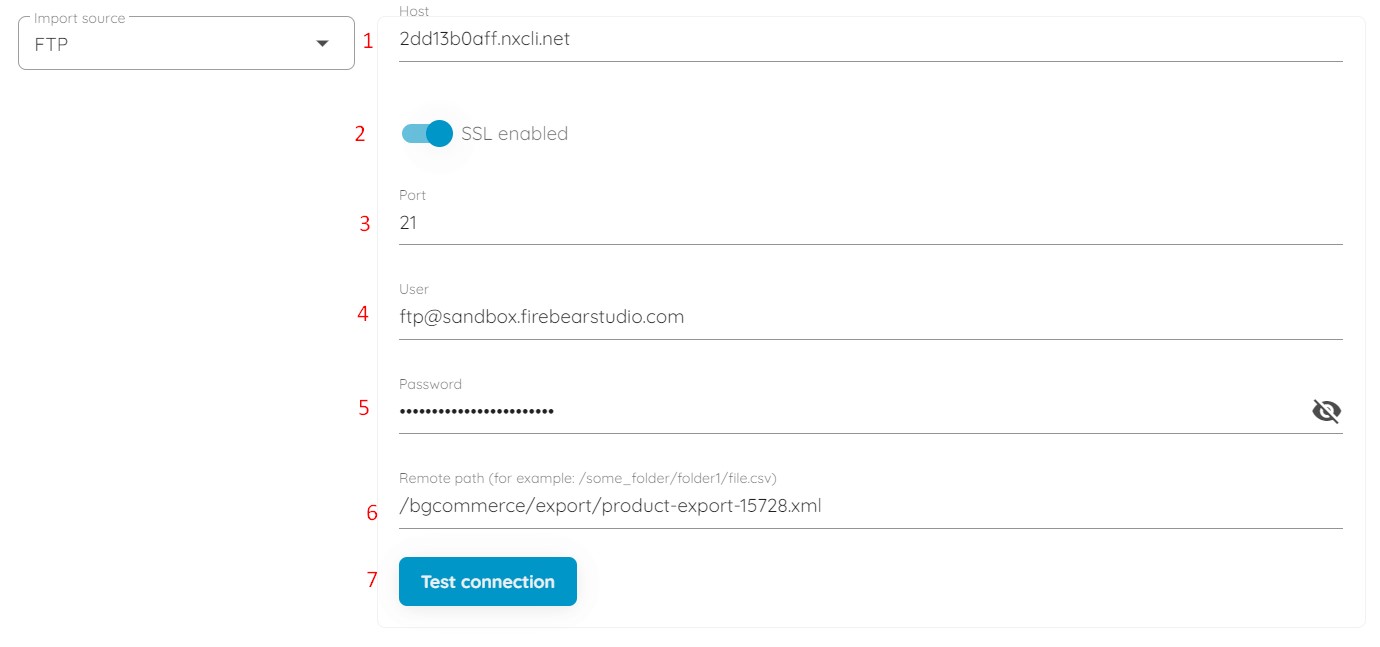
If you provide a file via FTP, follow these steps:
- Specify your host.
- Enable or disable SSL.
- Specify your port.
- Provide the user email used to access the remote source.
- Specify the corresponding password.
- Enter the remote path to your update file.
- Test the connection to verify that the credentials are correct.
Google Drive
Section titled “Google Drive”For Google Drive, allow Improved Import, Export & Mass Actions to use the required permissions and specify the full file name with its extension, for example pe5.1.xlsx, stored in the shopware-import-export folder.
Read more here: How to Import Files from Google Drive to Shopware 6.

Google Sheets
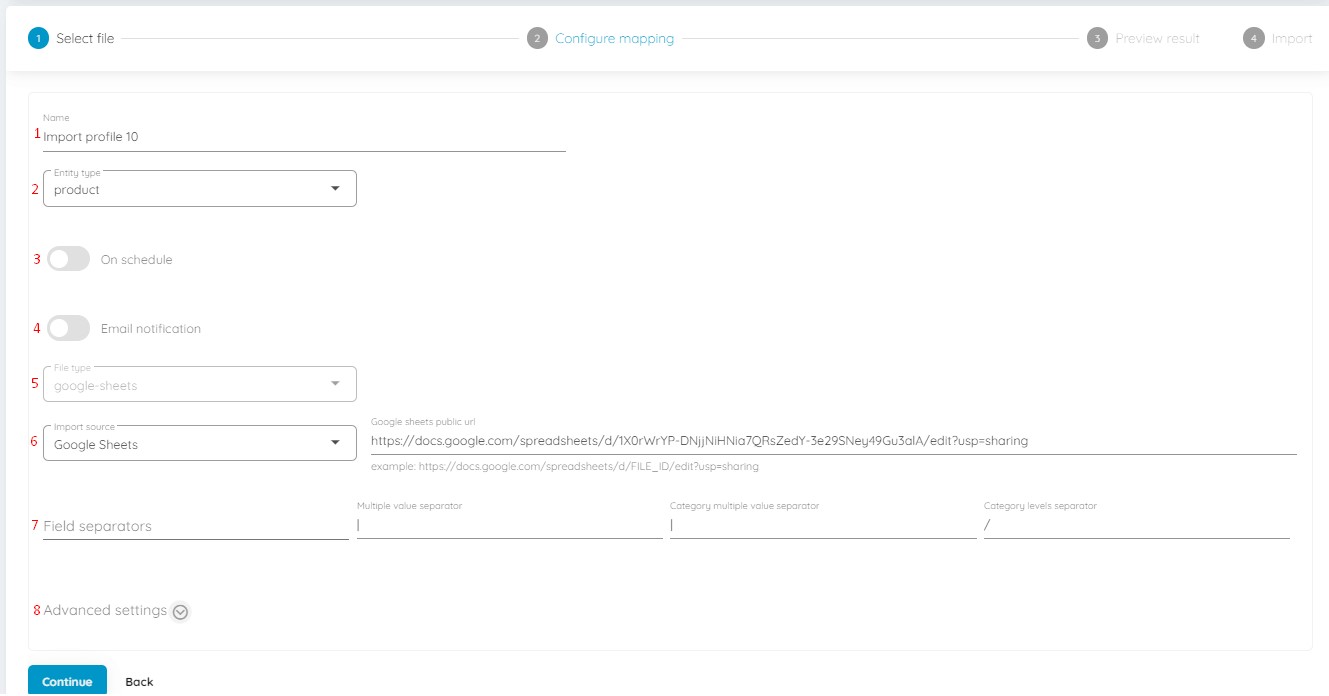
Section titled “Google Sheets”You can also import data from Google Sheets. Select the corresponding file type and source, then specify the link to your Google Sheets table.
Read more here: How to Import Data to Shopware 6 from Google Sheets.
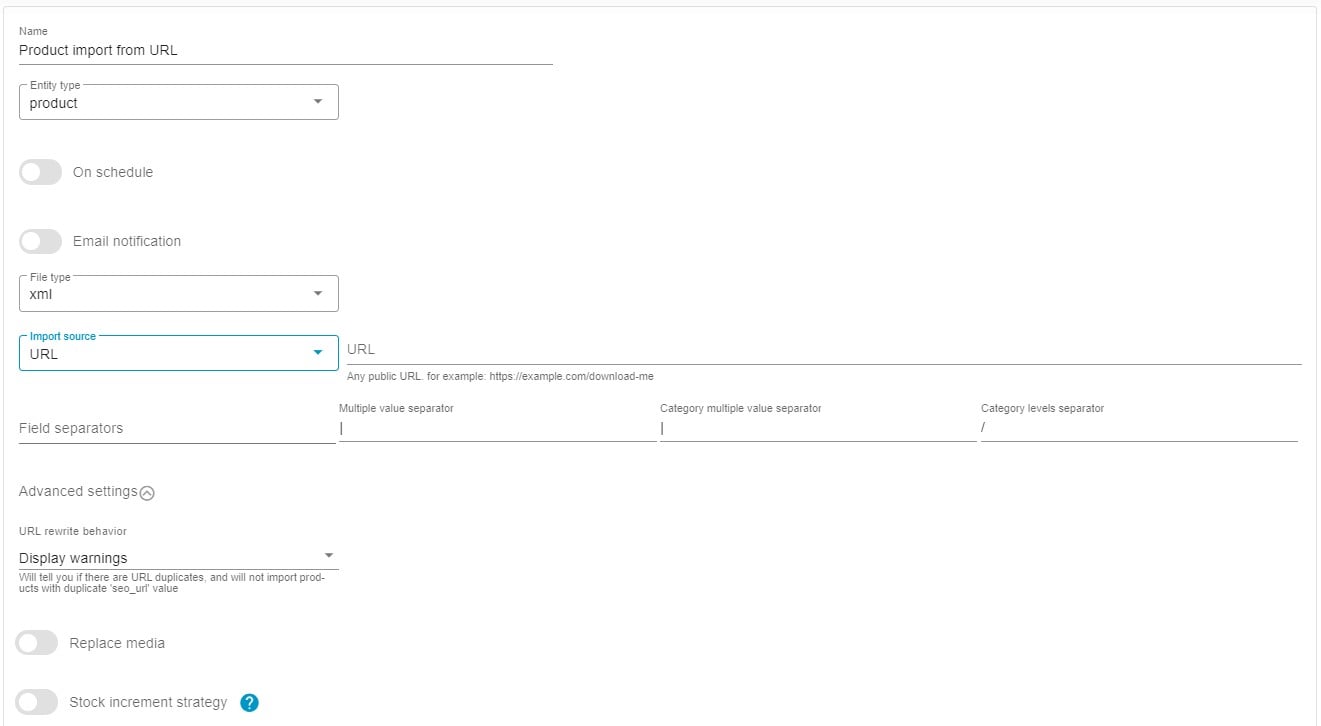
You can also use a public URL as the file source. Select URL as your import source and specify a public link to the update file, for example https://example.com/download-me.
Read more here: Shopware 6 Import From URL.